Email Communications Summary - Summary Tab
The Summary tab on the Report Results panel on the Email Communications Summary screen is used to view an overview of sales information included on the Email Communications Summary report.
Note - Gross profit information only displays on this tab if the View Gross Profit check box is selected on the Report Criteria panel.

|
To access the Summary tab, select the Summary tab on the Report Results panel on the Email Communications Summary screen. |
The Summary tab is divided into the following panels:
- Overall Summary panel
- Customer Summary panel
- Transactions Summary panel
- Interactions Summary panel
- Destinations Summary panel
- Vehicle Summary panel
 Overall Summary Panel
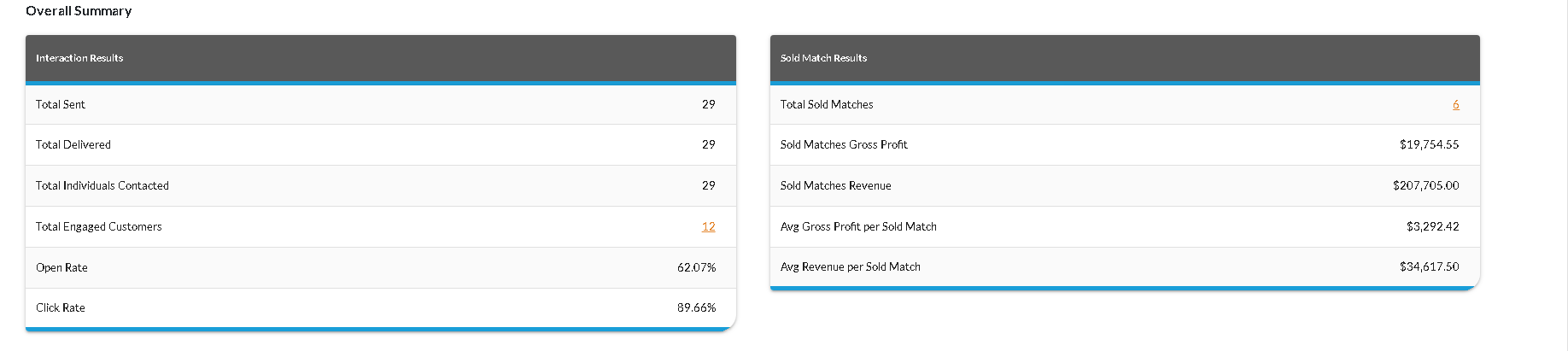
The Overall Summary panel is used to review information regarding the number of Email messages that were sent as well as vehicle sales and gross profits. This panel is divided into the Interaction Results section and the Sold Matches Results section.
Interaction Results Section
The Interaction Results section is used to review the number of Email messages sent during the entered date range.
The following rows are available in the Interaction Results section.
Total Sent: The number of Email messages sent to customers during the entered date range displays.
Total Delivered: The number of Email messages received by customers during the entered date range displays.
Open Rate: The percentage of Email messages sent during the entered date range which were opened by customers displays.
Click Rate: The percentage of customers who clicked
Sold Match Results Section
The Sold Match Results section is used to review gross profit and revenue data for sold matches during the entered date range. A sold match is a sold deal that is associated with an XtreamService lead.
The following rows are available in the Sold Match Results section.
Sold
Sold
Customer Summary Panel
The Customer Summary panel is used to review sales information based on the type of customers involved in the vehicle sales. The title of this panel displays as a link. Click this link to access the Email Communications Summary - Customers Tab of the report.
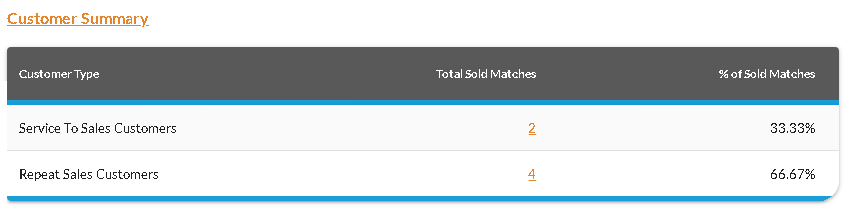
The following columns are available on the Customer Summary panel.
Customer Type: The type of customer displays.
The following types of customers can display.
- Other Customers. These customers have no previous sales or service history with the dealership; however, they purchased vehicles during the report time frame.
- Repeat Sales. These customers have sales history with the dealership and purchased vehicles during the report time frame.
- Service to Sales. These customers have service history but no previous sales history with the dealership; however, they purchased vehicles during the report time frame.
% of Sold Matches: The percentage of sold matches associated with the corresponding customer type displays.
Transactions Summary Panel
The Transactions Summary panel is used to review information regarding vehicle sales based on the type of vehicle deal. The title of this panel displays as a link. Click this link to access the Email Communications Summary - Transactions Tab of the report.
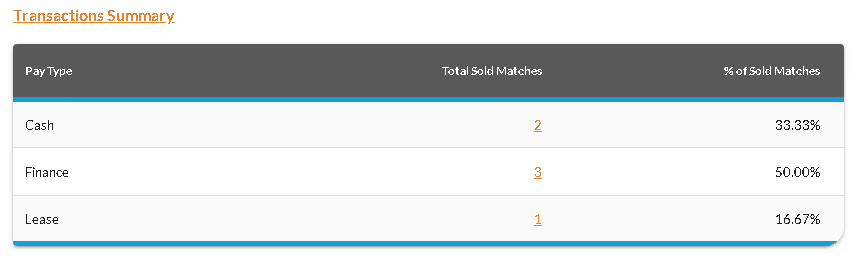
The following columns are available on the Transactions Summary panel.
Pay Type: The type of vehicle deal, such as Finance or Lease, displays.
% of Sold Matches: The percentage of sold matches associated with the corresponding deal type displays.
Interactions Summary Panel
The Interactions Summary panel is used to review sales information based on the type of customer interaction. Customer interactions occur when employees communicate with customers, such as during service appointments or sales campaigns. The total number of vehicles sold to XtreamService customers for each type of customer interaction displays as well as the gross profit and revenue. The title of this panel displays as a link. Click this link to access the Email Communications Summary - Interactions Tab of the report.

The following columns are available on the Interactions Summary panel.
Interaction Group: The type of customer interaction associated with the
Total Interactions Sent: The number of Email messages sent
Total Gross
Total Revenue: The revenue generated from sold matches associated with the corresponding interaction group during the entered date range displays.
Destinations Summary Panel
The Destinations Summary panel is used to review the number of links clicked in the Email messages. The title of this panel displays as a link. Click this link to access the Email Communications Summary - Destinations Tab of the report.

The following columns are available on the Destinations Summary panel.
Top 5 Links: The name of the link that was clicked most by customers displays.
Total Clicks: The number of times the corresponding link was clicked by customers displays.
Unique Clicks:
Vehicle Summary Panel
The Vehicle Summary panel is used to review sales information based on vehicle type. In addition, this panel is used to review sources of vehicle acquisitions. The title of this panel displays as a link. Click this link to access the Email Communications Summary - Vehicles Tab of the report. This panel is divided into the Vehicle Sales Type section and the Vehicle Acquisition Type section.

Vehicle Sales Type Section
The Vehicle Sales Type section is used to review the number of new, used, and certified vehicles sold during the entered date range.
The following columns are available in the Vehicle Sales Type section.
Vehicle
% of Total Matches: The percentage of sold matches associated with the corresponding vehicle sales type displays.
Vehicle Acquisition Type Section
The Vehicle Acquisition Type section is used to review the number of vehicles purchased from customers during the entered date range.
The following columns are available in the Vehicle Acquisition Type section.
Vehicle
Acquisition Matches: (Link) The total number of acquired vehicles for the corresponding source during the entered date range displays. Click this link to display the Detailed Results window, where details of the transactions can be reviewed.
% of TYPE Matches: The percentage of vehicle purchases associated with the corresponding acquisition type displays.
Click here for a list of products that may be mentioned in this help file.